 Français
 English
 Deutsch
 Espagnol
 Italiano
 Portuguès
 ελληνικά

Your track logbook, in your pocket
The free app for karting drivers, created by Magickart. Open it on your phone, add it to your home screen and find it in one tap at the side of the track.
🚧 Beta version: the app is not final yet.
A few bugs may appear, and that's normal: we are building it with drivers. Tell us what you would like to see in it: a feature, a track, a setting, an improvement… All your ideas count and help it evolve.
👉 In the app, open the Help tab to rate it and leave your feedback, or write to us at contact@magickart.fr.
Scan this QR code with your phone to open the app.
📲 Nothing to download: it installs in 30 seconds
No file to download, no Play Store or App Store, no account to create. You open the link from your phone and the app is added to your home screen:
🤖 Android : open the link with Chrome, then tap the “Install” button shown in the app (or the “⋮” menu then “Install app”).
🍎 iPhone : open the link with Safari, then Share > “Add to Home Screen” (step-by-step guide with images below).
The app then updates itself.
Everything your Track Logbook does
Whether you race in competition or rental karting, the Track Logbook keeps everything in one place: your settings, your lap times, your progress.
📋 Your karting setup sheet in 2 minutes
Choose the track, note the date, the driver, the kart settings, the pressures and your laps. Each sheet is kept in the History: you can reopen it or start from its settings for the next session.
🌦️ Live weather and recommended pressure
One button fills in the air temperature, humidity and estimated track temperature. If you have already driven on this track, the app suggests a cold pressure based on your last sheet and the track temperature difference.
⏱️ Import your lap times: Alfano ADA and RaceStudio 3 (AiM)
You drive with an Alfano ADA timer or an AiM system? Both work, in the same place and at the same time: you can even import sessions from both and compare them. Just add your file, and laps, RPM, temperatures, pressures and session time fill in the sheet by themselves, with analysis charts.
Alfano ADA: save your session in the ADA app, then add the file in the Logbook.
RaceStudio 3 (AiM): export your session as CSV (File > Export > CSV), then add the file the same way.
📊 Compare up to 5 sessions
Overlay the lap times of several sessions or several drivers: best lap, gap, average, temperatures, pressures. You see at a glance what made you gain (or lose) tenths. The “A driver against himself” section tracks your progress from one session to the next.
🏁 Rental karting: keep your best lap
A rental session or a leisure race? Note your lap times in sprint or endurance (each driver's stint and the team result), add the photo of the timing sheet, find your record on each track and compare yourself with your friends.
🏆 Racing in SWS? Everything is one click away
For SWS drivers, the app gives direct access to your ranking and the race dates on the official website.
📍 All your tracks, everywhere
Tracks are sorted by country. One is missing? Add it in a few seconds, with its name, city and length.
🤝 Share with other drivers
Send your sheet to another driver (AirDrop, WhatsApp, email) to compare your sessions. Nothing is sent over the internet unless you decide so.
🛒 Parts and equipment at hand
Need a spark plug, tyres or temperature probes? The app takes you straight to the Magickart shop.
🌍 In your language
The app is available in French, English, German, Spanish, Italian and Portuguese.
🔒 Free, and your data stays with you
The Track Logbook is free. Your sheets are saved on your phone, with a backup to copy if you change device.
📱 Install the app on iPhone (step by step)
On iPhone, installation is done only with Safari. It takes about 30 seconds. Once installed, the app has its icon on your home screen and opens full screen, like any other app.
Step 1: open the link in Safari
Scan the QR code above or tap the “Open the Track Logbook” button. If the link opens in another app (Facebook, Messenger, Gmail…), copy the address carnet-magickart.netlify.app then paste it into Safari.
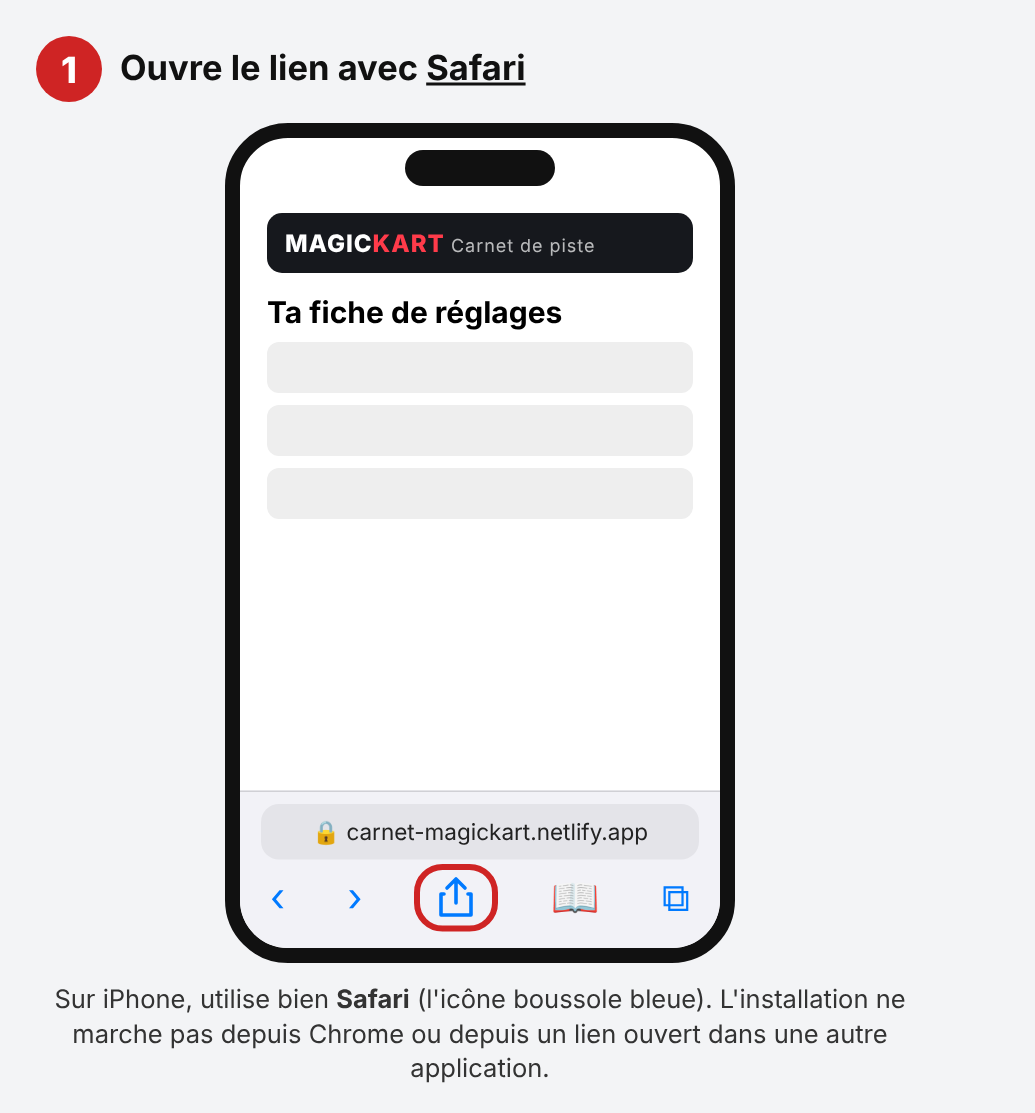
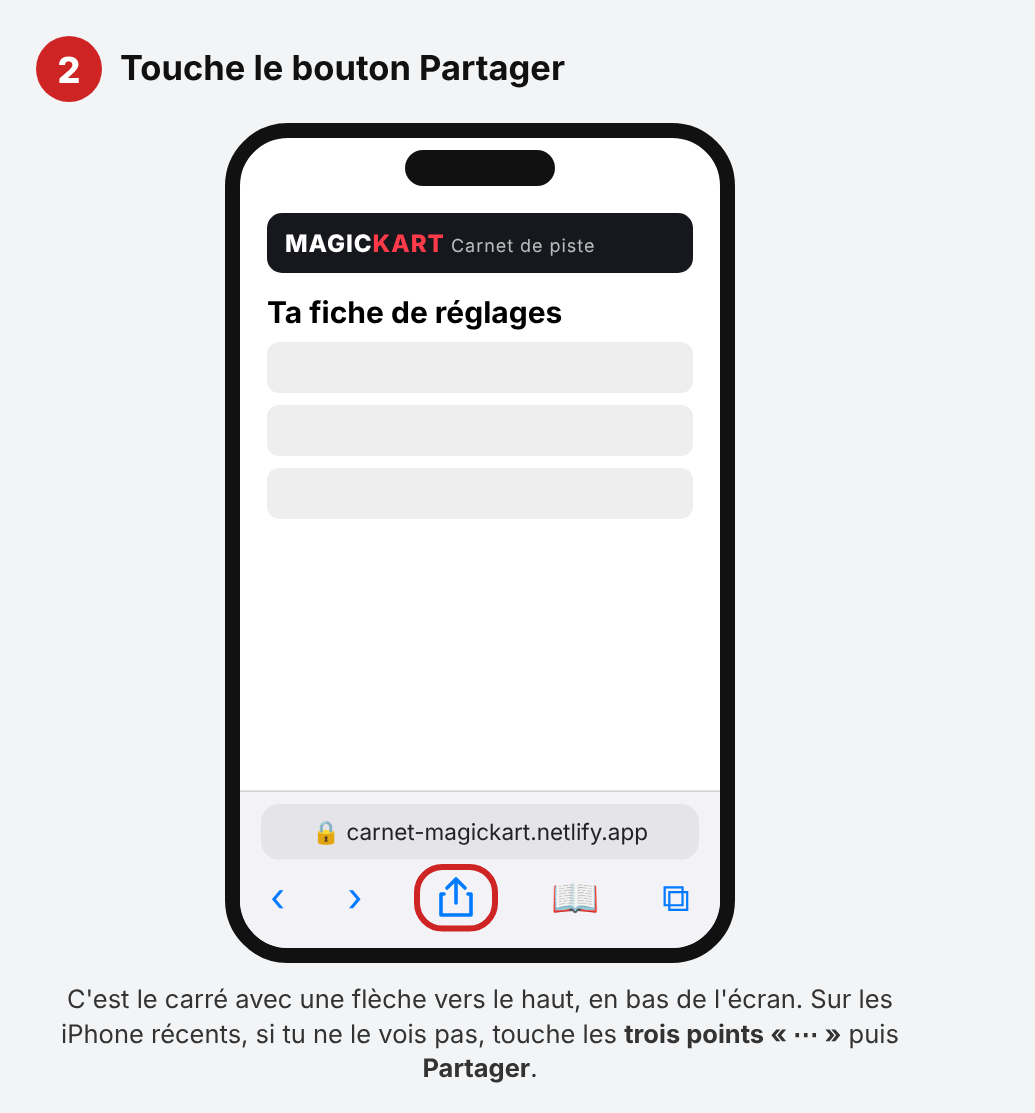
Step 2: tap the Share button
It's the square with an arrow pointing up, at the bottom of the screen. If you don't see it (recent iPhones), tap the three dots “⋯” then Share.
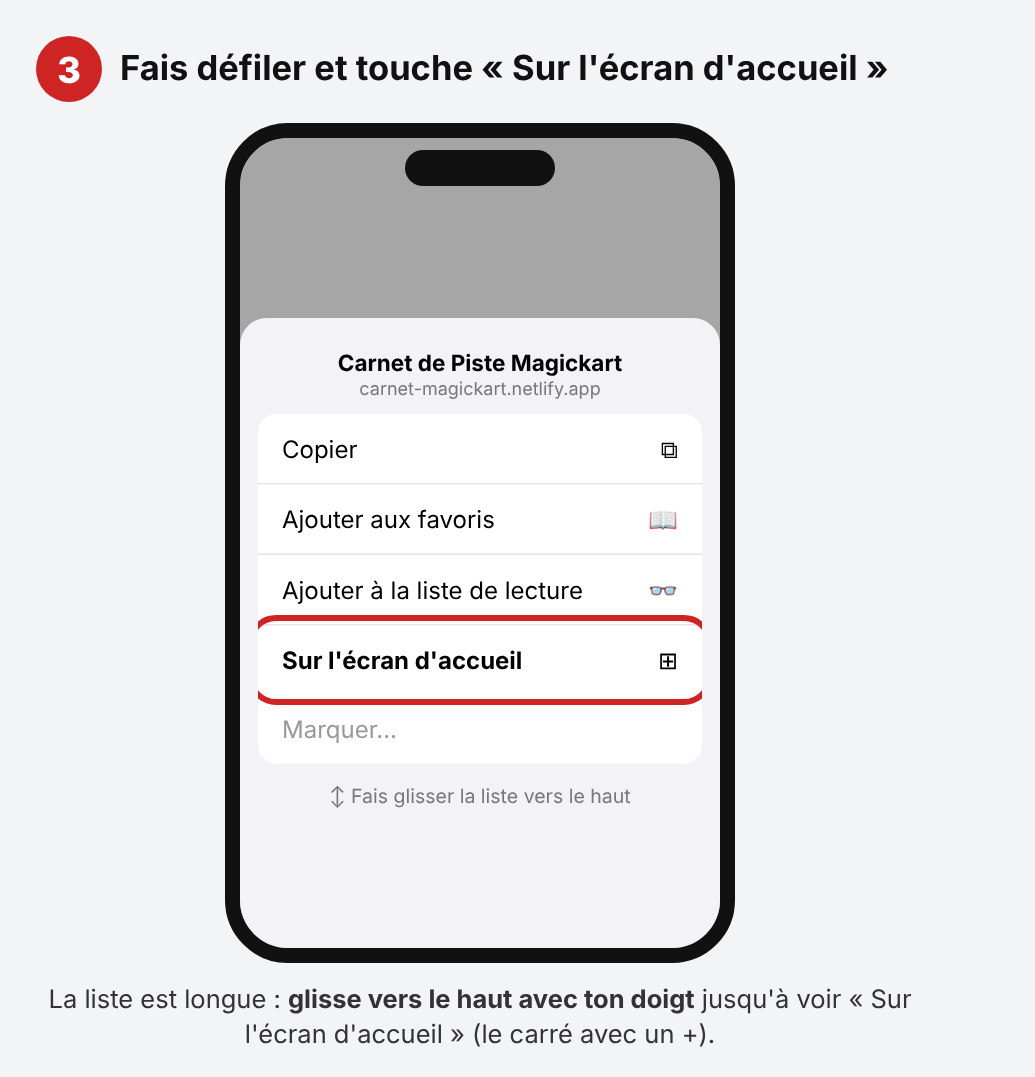
Step 3: choose “Add to Home Screen”
Slide the list upwards with your finger until you find “Add to Home Screen” (the square with a “+”), then tap it.
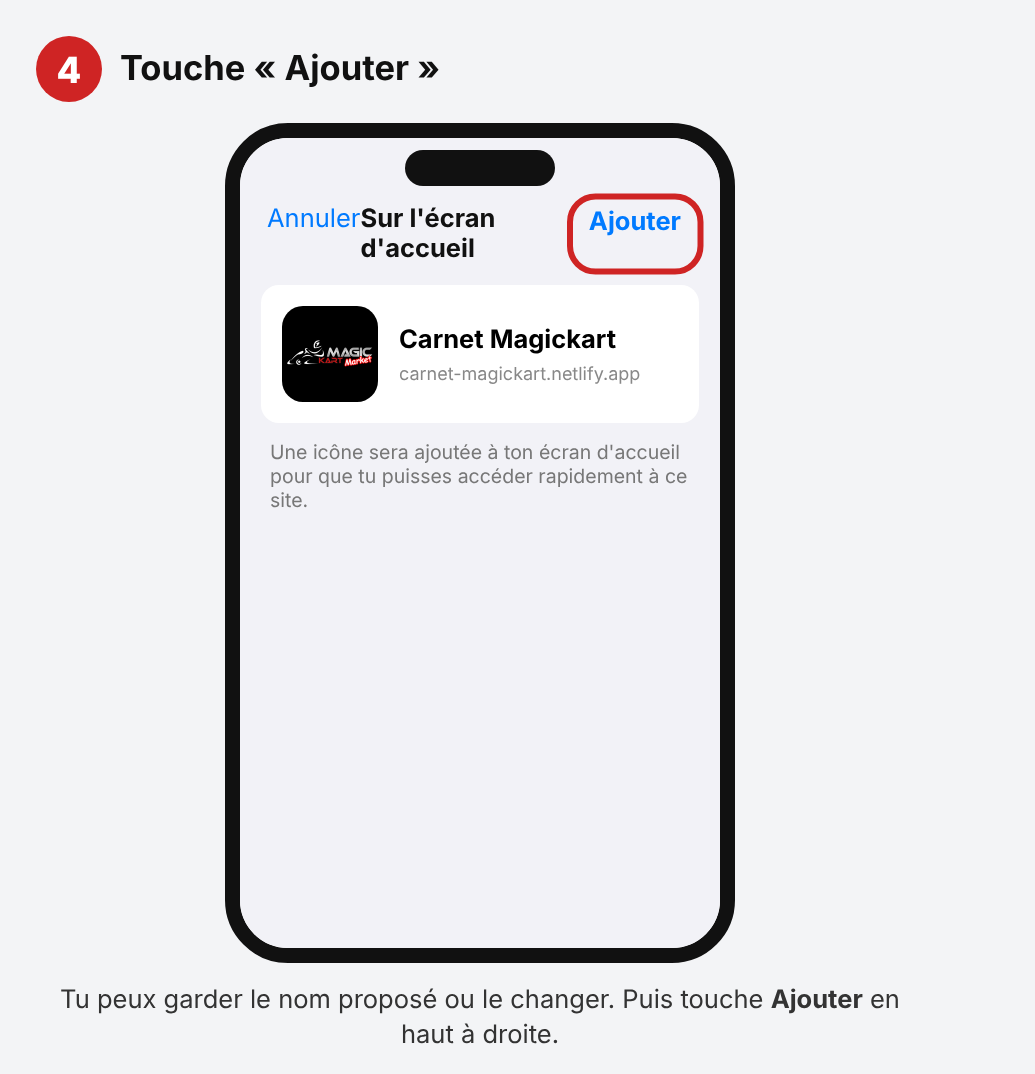
Step 4: tap “Add”
You can keep the name “Carnet Magickart” or change it. Then tap Add, at the top right.
Step 5: it's installed!
The Carnet Magickart icon appears on your home screen. Tap it to open the app, whenever you want, even at the side of the track.
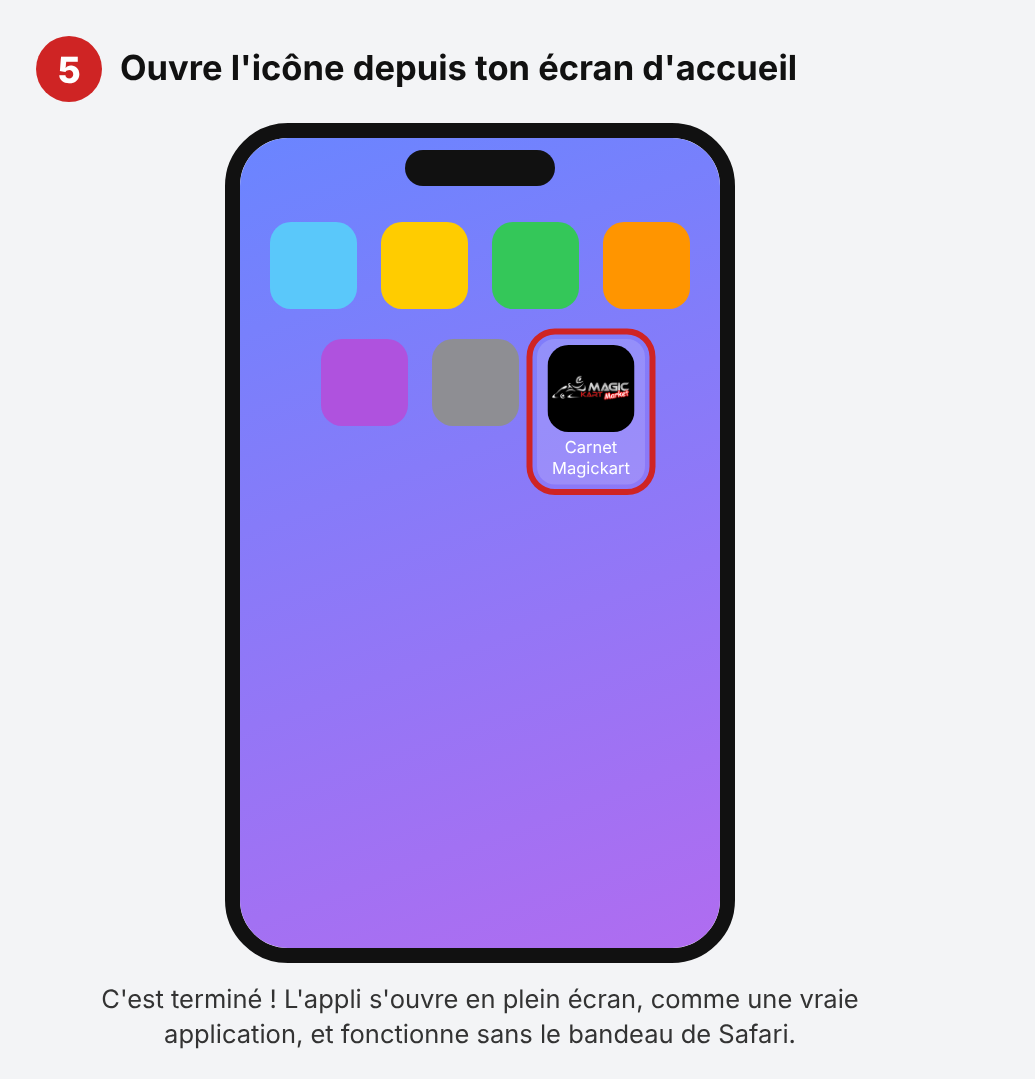
Simplified illustrations: the exact look of the menus may vary slightly depending on your iOS version.
Doesn't work?
- You don't see “Add to Home Screen”: you are probably not in Safari. Open the link in Safari and try again.
- The Share button can't be found: tap the three dots “⋯” at the bottom right, then Share.
- The icon doesn't appear: look on the last page of your home screen or in the App Library.
- A problem persists: write to us at contact@magickart.fr, we will reply.
🤖 Install the app on Android
- Open the link with Chrome.
- Tap the “Install” button shown in the app. If it doesn't appear, tap the “⋮” menu at the top right.
- Choose Install app (or Add to Home screen), then confirm.
- The Carnet Magickart icon is now on your home screen.
An idea to improve it?
This app is made for drivers, so tell us what would really help you: a missing track, a setting to follow, a new feature… Write to us at contact@magickart.fr or leave your feedback from the app's Help tab. Thank you for helping us make it better! 🏁